So you want to use mic or voice chats in Roblox, but you do not know how to get started. Do not worry, Many people get confused by this, especially since Roblox changed how the whole thing works. The good thing is it’s really not hard or complicated once you know the right steps. This guide will teach you through everything from the beginning, so you can start talking to other players without wasting time trying to navigate the wrong menus. And if you ever need to top up your Robux fast and affordable, LootBar is a great place to do your Roblox top up without overspending.
Step 1: Make Sure You Qualify First
Before i proceed for your guide, you first need to know first that Roblox voice chat is only available for players aged 13 and above. All of the Accounts under 13 cannot use voice chat even with parental approval. So if your account is registered under 13 years old, voice chat simply will not be available for you. Also you need to know getting voice chat on Roblox is not about phone verification. A lot of people waste time trying to verify their phone number thinking that unlocks voice chat but it does not work that way anymore. Make sure you know that your age is qualified for this voice chat or mic.
Step 2: Verify Your Age
This one is the most important and do not skip this.You must need provide a picture of a government issued ID like a driver's license or passport confirming that you are at least 13 years of age. Open Roblox and go to Settings. Open Account Info and tap Verify My Age and use continue with a camera to check your age to get more features. Upload a picture of your ID. Take a selfie for liveness verification. Then wait for confirmation which usually takes just a few minutes.
This is the process how to do it:
Click or tap the Settings icon.
Open the Account Info
Select "Continue with camera."
Click or tap "Continue with ID" then provide a photo of a government-issued ID, such as a driver's license or passport.
It sounds like a lot to do but it goes pretty fast and easy once you have your ID ready.
Step 3: Enable Voice Chat in Settings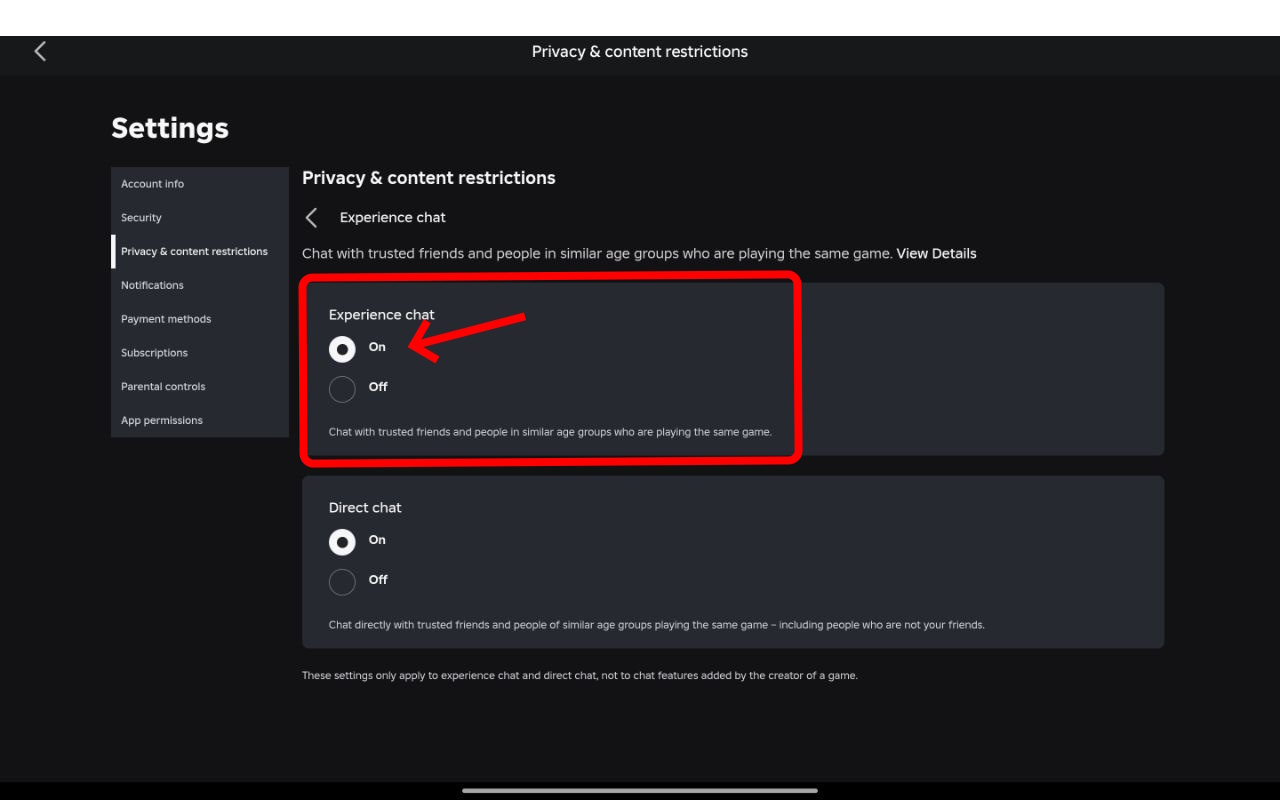
Once your age is verified, now you can turn on voice chat. Open you Roblox accounts and log in. Click the gear icon and go to Settings. Go to Privacy. Scroll to Voice Chat and toggle Enable Voice Chat. If the toggle is missing it means your age is not verified yet.
Step 4: Allow Microphone Access on Your Device
Turning on voice chat inside Roblox is not enough on its own. Your device that use also needs to allow Roblox to actually use your microphone. On Windows open Windows Settings, go to Privacy and Security, then Microphone, and allow Roblox. On macOS open System Settings, go to Privacy and Security, then Microphone, and allow Roblox.
If you use on mobile, go to Settings first then Apps then Roblox then Permissions and allow Microphone. This step most of people forget and then wonder why their mic is still not working even after enabling everything inside the app.
Step 5: Join a Voice Chat Games Supported Experience 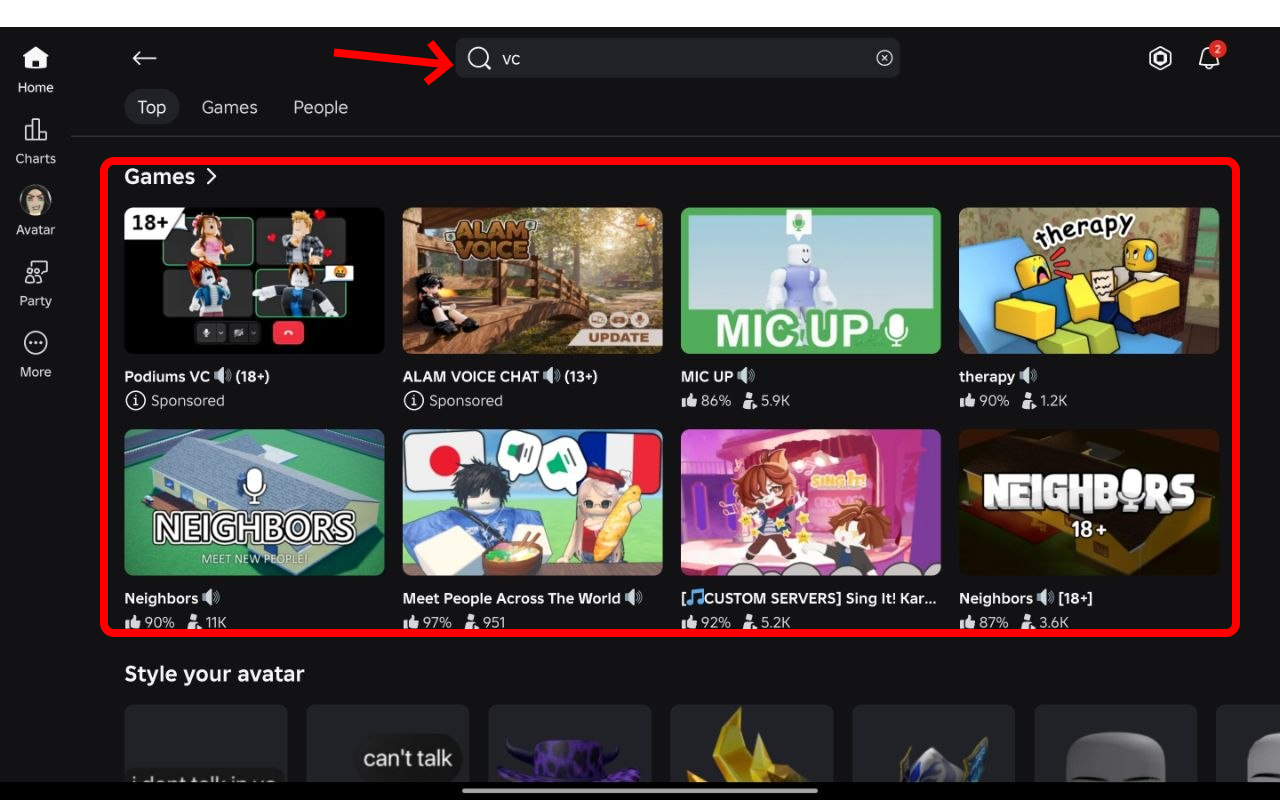
Here is something a lot of guides do not tell you clearly not every Roblox game supports voice chat. Not all Roblox games experiences support voice chat. To find about this compatible games search for voice enabled or VC, look for the microphone icon next to the game name, join the game and check if the mic icon appears above players avatars.
So if you want to join a random game and your mic still does not seem to work, it is probably because that your particular game just does not have voice chat enabled. Try a different game that specifically supports it.
Step 6: Connect Your Mic Inside the Game
Once you are inside a voice chat supported experience, you are almost there. You will see a headphone icon in the upper left corner of your screen. Click this icon to connect to voice chat within that specific experience. On mobile, tap the microphone icon in the upper left corner of your screen.
Once you do that your mic is live and you can start talking to other players. That is it you are all set.
What to Do If It Is Still Not Working
If you followed all the steps and your mic is still not working, here are a few things to check. Complete the age check first, then enable voice in privacy settings, then allow mic access on your device, and then test voice chat in a voice enabled experience. This order solves most issues.
Also double check that you are not muted inside the game itself. If Roblox asks for microphone permission allow it. If you denied it earlier re enable mic access in your device app settings. Sometimes people accidentally deny the permission the first time Roblox asks and then forget about it.
Conclusion
Setting up voice chat on Roblox is honestly not that hard, Because you just need to do the steps first in the right order. First is verify your age, then after that turn on voice chat in your privacy settings, allow your mic on your device, and join a game that actually has voice chat on. A lot of players and users get stuck just because they miss one step or do it wrong order. Just follow this guide and you will be chatting with other players in no time. Good luck and have fun!. And whenever you need to reload your Robux quickly and without breaking the bank, head over to LootBar for fast and affordable Roblox top up anytime you need it.