The Apex Legends game cycle relies heavily on quick reactions, aim and movement. You cannot simply rely on skill; even your settings for a controller and your PC's graphic settings will go a long way in helping you to achieve more consistent firefights.
While there are no universally “optimal” settings that are a cut above the rest, professional players, in particular, focus on settings that aid in reaction time, ensure enemies can be seen with ease, and assist in achieving more consistent tracking of your opponents rather than eye-catching graphics or ridiculously high sensitivity.
This guide covers the latest recommended controller settings, sensitivity options, button layouts, deadzones, Advanced Look Controls (ALC), and graphics settings to help you perform at your best.
Need Apex Coins for new character Sparrow and new weapon skins?LootBar offers a variety of Apex Coins top up, instant delivery and 24/7 customer support!
Why Controller Settings Matter
Your controller settings play a big role in how you can snap to enemies, manage your recoil, and even move around and duel in the trenches. The sweet spot is in the setting that enables muscle memory and much of that comes with play. Do not focus on the ultra-high sensitvity values that streamers use, focus on maintaining consistency with a steady hand.
Best Controller Sensitivity
Look Sensitivity
For most players, these settings provide the best balance between speed and accuracy.
| Setting | Recommended |
| Look Sensitivity | 4 or 5 |
| ADS Sensitivity | 3 or 4 |
| Response Curve | Classic |
| Look Deadzone | Small |
| Movement Deadzone | Small |
| Inverted Look | Off |
| Vibration | Off |
One of the most common sens levels, 4-3, for both looks and ADS (ADS stands for Aim down sights). With sensitivity 4-3, the recoil control is manageable and players don’t have to sacrifice a significant speed of the reticle movement while aiming. The sens can be elevated up to 5-4 for the more agile players once they are familiarized with the sensitivity.
Should You Use Advanced Look Controls (ALC)?
ALC offer you full control over how you want to aim, but they aren’t something most of the population need to have.
You get a lot of consistency out of the standard sensitivity presets so until you can account for every aspect of a setting, it is not worth looking into.
Recommended ALC Settings
For players who prefer ALC, this setup offers smooth aiming while maintaining responsive movement.
| Setting | Recommended |
| Deadzone | 3% |
| Outer Threshold | 2% |
| Response Curve | 8 |
| Yaw Speed | 240 |
| Pitch Speed | 180 |
| Turning Extra Yaw | 220 |
| Turning Extra Pitch | 80 |
| ADS Yaw Speed | 120 |
| ADS Pitch Speed | 90 |
| ADS Turning Extra Yaw | 0 |
| ADS Turning Extra Pitch | 0 |
| Ramp-up Time | 0 |
| Ramp-up Delay | 0 |
These values emphasize recoil control while still allowing quick turns during close-range engagements.
Best Button Layout
Button layout largely depends on personal preference, but several layouts consistently perform well.
Default
Great for beginners to Apex Legends. It controls feel quite good across most of your actions and although taking a knee in a fight can feel slightly tricky to time.
Button Puncher
Button Puncher will switch melee and crouch. Many controller players will opt for this setup since it makes it way simpler to spam crouches in up-close gun fights.
Evolved
The evolution has remapped our more jump-happy, skill-focused abilities to easier access. Legends who focus more on mobility, like Valkyrie, Octane, Pathfinder and Horizon, gain the most out of the new setup.
Customized Layout
Players with back paddles or programmable controllers often assign:
- Jump
- Crouch
- Heal
- Tactical Ability
to paddles, allowing both thumbs to remain on the analog sticks during combat.
Aim Assist Settings
When playing a controller you should leave aim assist on. Without it, a controller is severely at a disadvantage against both controller and mouse-and-keyboard players. Use Apex Legend's default aim assist values.
Best Movement Settings
Several gameplay settings improve movement consistency.
| Setting | Recommended |
| Auto Sprint | On |
| Double Tap Sprint | Off |
| Crouch Button | Hold |
| Jetpack Control (Valkyrie) | Hold |
| Survival Slot Button | On |
| Interact Prompt Style | Compact |
Best Graphics Settings (PC)
Competitive players prioritize visibility and stable frame rates over visual quality.
Display Settings
| Setting | Recommended |
| Display Mode | Fullscreen |
| Resolution | Native Monitor Resolution |
| Aspect Ratio | Native |
| Fov | 104–110 |
| V-Sync | Disabled |
| Adaptive Resolution FPS | 0 |
| NVIDIA Reflex | Enabled + Boost (if supported) |
A Field of View between 104 and 110 provides excellent peripheral vision without making enemies excessively small. You can also follow the image below.
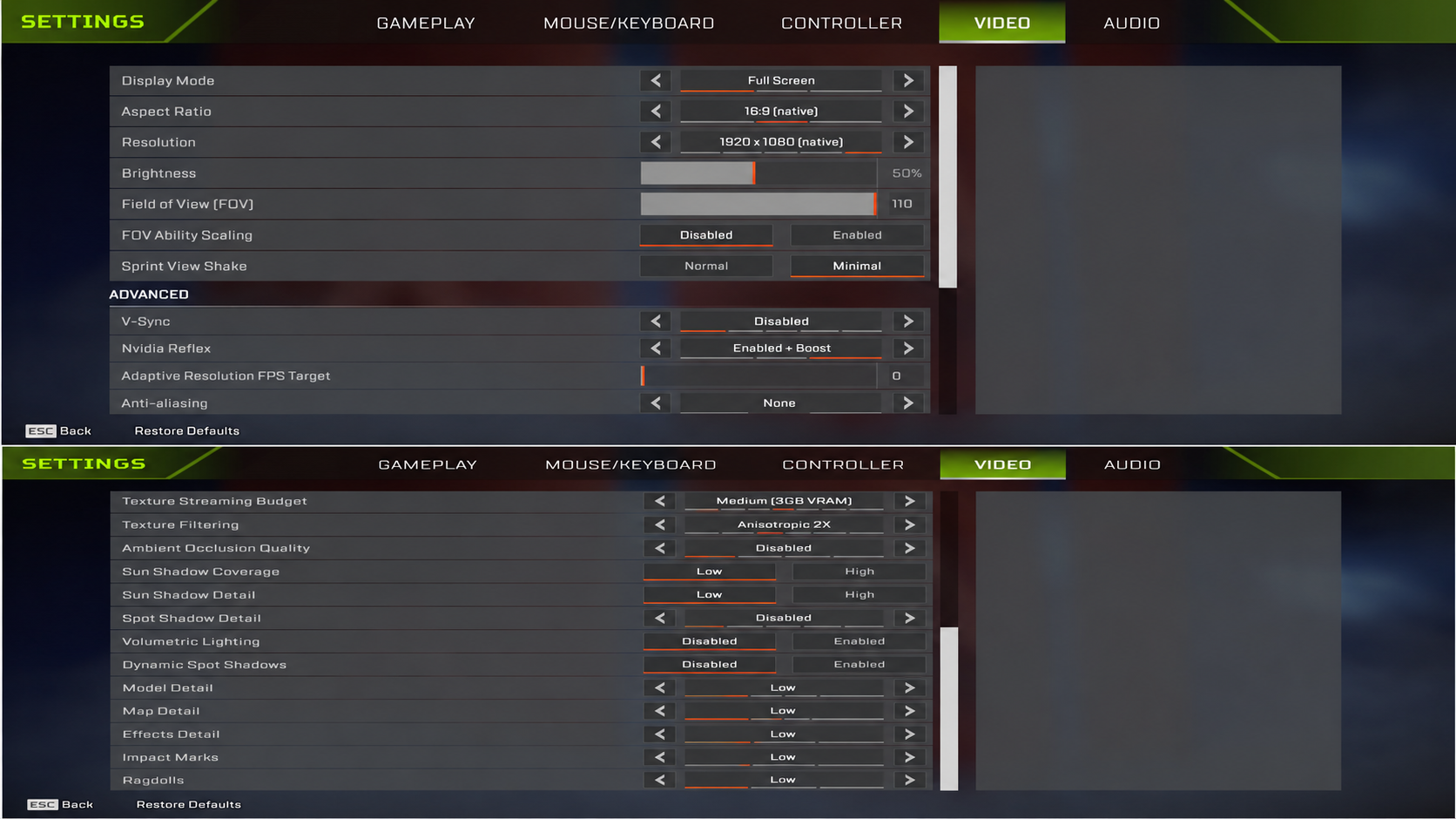 Video Settings
| Setting | Recommended |
| Texture Streaming Budget | Medium or High (VRAM dependent) |
| Texture Filtering | Bilinear or 2x |
| Ambient Occlusion | Disabled |
| Sun Shadow Coverage | Low |
| Sun Shadow Detail | Low |
| Spot Shadow Detail | Disabled |
| Volumetric Lighting | Disabled |
| Dynamic Spot Shadows | Disabled |
| Model Detail | Medium |
| Effects Detail | Low |
| Impact Marks | Low |
| Ragdolls | Low |
Lower graphics settings reduce visual clutter while improving frame rates during large team fights.
Best Console Graphics Settings
Console players have fewer graphics options, but several settings still improve performance.
Current-Generation Consoles
If available on your platform, turn on Performance mode. Framerates improve the feel of shooting significantly over more visually detailed settings. Consider disabling features you don't need (Motion blur, Film grain etc.) if available.
Audio Settings for Competitive Play
Audio Settings are as important as control settings. Try using headphones that allow sound in stereo. If you use your TV speakers then try lowering your music to make you better hear steps.
Recommended settings include:
| Setting | Recommended |
| Master Volume | 100% |
| Sound Effects | 100% |
| Dialogue | 60–80% |
| Music | 0–20% |
| Lobby Music | Personal Preference |
| Voice Chat | Adjust as Needed |
Prioritizing sound effects helps identify enemy footsteps, zip lines, doors, and ability usage.
Practice Before Changing Again
Lots of people change their settings after literally every bad game they lose in. They make no effort to develop muscle memory at all. Make sure that after you finally nail a setting, keep it for several days before tweaking anything else.
Spend time in the Firing Range practicing:
- Recoil control
- Target tracking
- Hip-fire accuracy
- Shield swaps
- Close-range movement
Consistency produces better long-term improvement than endlessly copying professional settings.
Enhance Your Apex Legends Experience with LootBar
Whether you're unlocking a new Battle Pass, purchasing Apex Coins for limited-time skins, or preparing for the latest Collection Event, having enough premium currency helps you customize your experience.
If you're planning to top up Apex Coins, LootBar offers a secure and convenient recharge option. Using a trusted top-up platform allows you to quickly obtain Apex Coins so you can focus on climbing the ranks and enjoying every new season.
Conclusion
At the end of the day, there's no single “best” set of controller settings that works for everyone. Your ideal settings will vary depending on your personal preferences and playstyle, and the key to unlocking your full potential in Apex Legends is to experiment until you find what works for you. As long as you focus on building solid fundamentals, consistent mechanics, and constant practice, you can adapt the settings to fit your needs and give yourself the edge you need to take on the competition at the highest levels of Apex Legends. LootBar offers a variety of Apex Coins top up, instant delivery and 24/7 customer support!